Wednesday, January 27, 2016

Are you a Chrome Tab-aholic? Consider using OneTab.


Do you frequently have so many tabs open  in Chrome that you are unable to tell what is loaded in each one? 
Are you a user who just can't close a tab because it may be useful later? 
Do you frequent see, Mr "Ah, Snap!"?


You, my friend, have a Chrome tab issue!
There's a solution for you, but the first step to getting the help you need is admitting you have a problem.

I don't have a tab problem!
One of the reasons for a visit from Mr "Ah, Snap!" is running out of enough memory (RAM) to keep up with all tabs open in the browser. Each open tab in Chrome consumes memory. After just a ten tabs (I am trying to cut down), I am already using about 1.2 GB of RAM. When doing research, I frequently have well over 20 tabs open. This leaves few resources for other processes the computer needs to do.
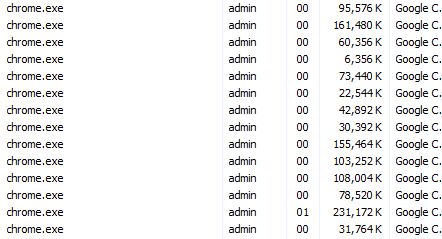


Why does this happen?
Chrome trades memory usage for stability. Each open tab, extension and plug-in is run as a separate process. When a tab or plug-in locks up, users rarely have to restart the entire browser. In most cases, just close the tab and try again. This is especially welcome when one has several tabs open.  The downside to this stability is the possibility of using up all the available RAM on tabs leaving little for running other applications.  Suddenly you are in "click and wait" territory.

Is there anything I can do (without changing my browsing habits)?
OneTab is a FREE browser extension for Chrome that can help you manage the tab monkey on your back.
OneTab allows users to convert open tabs to single tab with a list of links that can be restored individually or all at once.  


After clicking the OneTab icon, my ten tabs were condensed into one tab of links. I am now using under 330 MB.  Below shows my one tab, my 5 extensions and my browser itself.


 I can quickly relaunch any or all of the tabs I was using, and my computer has more RAM available to run other programs I need. OneTab even allows the import, export and sharing of tab links.

If you find yourself with a slow computer when you have many tabs open, give OneTab a try.

Wednesday, January 20, 2016

Formative Assessment Tool Reviews

We've been talking about Kahoot in the district for a couple of years now.  As always happens, one company's success leads others to new innovations.  This review will look briefly at three great alternatives for collecting data from students in the classroom.

First off, let's cover the similarities of all three.  All three are free websites that are designed with teachers in mind.  They all utilize gamification to engage students in giving feedback in a fun and competitive environment. The teachers can create their quizzes online, save them and reuse them as needed.  All three also have a searchable database of free quizzes you can use with your own students.   The ease of working with all three on any computer or mobile device makes all three an attractive choice. Lastly, all of them will let you collect, view online and save student answer data.


Kahoot.it 
Kahoot has been the trend setter.  The students just see the four answer icons on their screen when a teacher presents the quiz from her computer. All questions are timed and students must read the answer choices from the teacher's projected screen.   Some teachers like Kahoot because of the simplicity of quiz setup and that spontaneous quizzes can be setup very quickly.


Quizizz.com and Quizalize.com
Unlike Kahoot, Quizizz and Quizalize both provide the question and answer choices on the student device.  Students can work at their own pace, question order randomized and the timer turned off.  A huge bonus of both is the ability to present the quiz as homework.  Students can take the quiz code home with them and complete it one or more times anytime during the quiz's assigned window.

In addition, Quizalize provides the teacher with more text space for longer questions and answers, a math equation editor, the possibility of student logins and class groups.  The teacher also has the ability to type an answer explanation for when the student chooses unwisely.

A teacher really can't go wrong with any one of the three sites. Students enjoy the interactivity and game time and teachers get data to help refine instructional time.

Leave a comment below about your favorite.  Do you have a favorite quiz you could share below with other teachers?

Monday, January 11, 2016

Google Maps and Google Sheets Make Interactive Maps

Trevor Beck published a great video that shows how students can use a Google Sheet of data and import it into Google Maps to make an interactive map.  The video is pretty easy to understand and follow!

How can teachers use this?  

  • In a world history class, combine economic data with geographic tags on the map for easier comparison between locations.
  • Use the Layers to provide hideable data. Have one layer for German troop movement and another for Allied troop movement.  Spreadsheet data could provide dates of military action and casualty statistics. 
  • Historical data regarding climate change could be collected in a spreadsheet which could be imported into the map. Layers could provide points for specific decades.
  • Record biographical information for people important in Texas history.  Import the data into a Google map that shows where these people lived in Texas.
  • Similar to Google LitTrips, connect fictional events in a historical fiction story to their real geographic locations.  Edit the tags to include student-made art that illustrates the events.
What are some other ways that you could combine spreadsheets and Google Maps in your classroom? Please share in the comments below!

Wednesday, December 16, 2015

Combining Documents into a Single PDF using Acrobat Pro

We often get questions about how to combine documents into a single PDF using Acrobat Professional. Challenge accepted...


Sunday, November 22, 2015

Holiday Activities via Google Classroom

Happy Thanksgiving week!  The Instructional Technology Team is very thankful for the teachers in AISD that continue to transform their instructional practice and develop authentic ways to engage students using the available technology in the classroom!

Holiday Activities via Google Classroom!
In an effort to demonstrate Google Classroom to teachers and students, The “Holiday Classroom!” class is being shared with all teachers and students in AISD.  Simply joining the class will provide teachers and student access to a few Google Apps activities created for the holiday season. Students will automagically get their own copy of the activities after joining the class.

(*Teachers, see important note below.)

Students and teachers can go into the AISD Cloud and search for Google Classroom. Once open, click the + sign at the top right to select Join.   Join this class using the code, “5adyiv.  Students can immediately begin working on any activity in this Holiday Classroom! by just clicking on the assignment title and then on the activity. 

The process of joining will create a copy of all activities in a new folder in your Google Drive called “Classroom”. Inside that folder you will see all classes that you have joined, including “Holiday Classroom!”  

*Important: A quick-start guide to using Google Classroom can be found at: http://bit.ly/aisdgclassroom .  Also, it is important that teachers first click the blue “Teacher” button the very first time they access Google Classroom.  They can then +Join a class just like a student.  

One of the activities included is a Thanksgiving-themed "What I Am Thankful For" Google Slide. Simply adding text to this slide completes the activity, but students can explore other tools within Slides as they become more familiar with this creation tool.  Check out the activity at: http://bit.ly/thanksgivingslide .

Leave a comment or feedback on these activities or implementation strategies that you found helpful.  We would love to share your feedback with other teachers.