Showing posts with label sharing. Show all posts

Friday, October 9, 2015

ViewPure - YouTube without the distraction

YouTube is a great resource for educational content. It is also a source for, shall we say, off-topic content. Often the great educational content shares the screen with a "related" video that grabs our students' attention like a flashing sign advertising free ice cream. Sometimes there are also comments posted by people demonstrating their command of the English dialect my grandmother called "sailor talk".


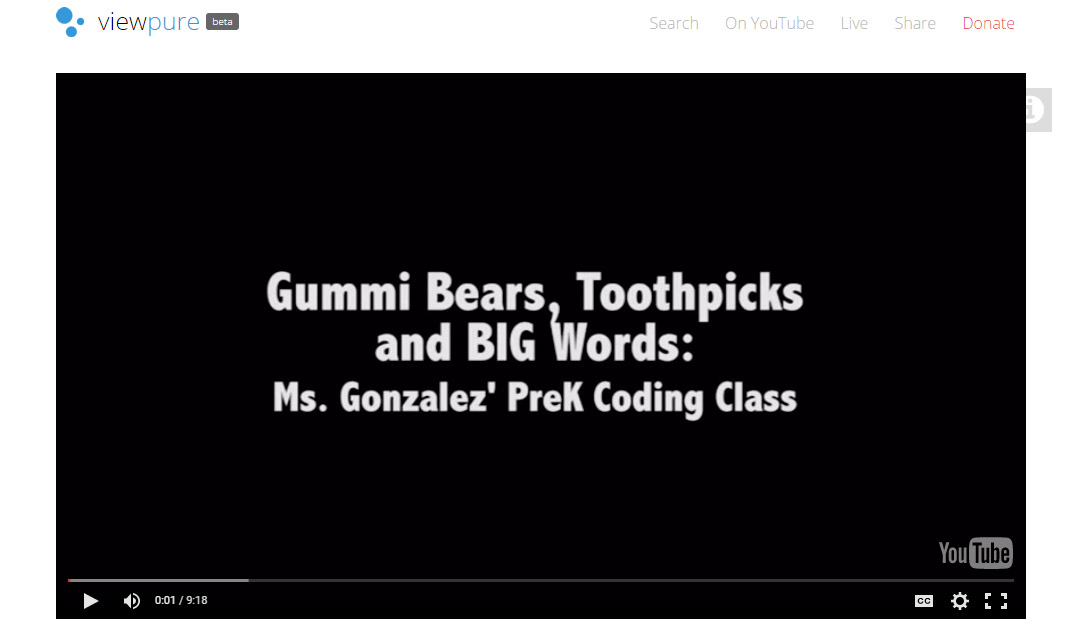
 ViewPure is a free web service that allows you to watch and project YouTube videos without seeing potentially distracting "related" videos or comments sections. Simply paste the address of the Youtube video you wish to isolate and click the Purify button.

The video is then displayed in a clean browser window free of related videos and comments section. Because there is less clutter on the page, the video gets much more screen real estate.

ViewPure also creates a reusable URL and allows for creation of a custom URL with a password. Just click on the gear icon after pasting in your YouTube video address and adjust the settings.


Too many steps? Don't want to have to remember to copy and paste? Want a quick and easy way to use ViewPure from your browser? You are in luck. 

ViewPure has a shortcut that can be added to the browser bookmark bar that will automagically open the YouTube video in the browser window in the clean ViewPure format.

If you would like additional information on using web video with your classes, please contact your Instructional Technology Specialist.


Friday, September 18, 2015

Manage The Saving of iOS Products With Multiple Users In The Classroom

Our previous post demonstrated how to upload items in the iPad's Photo Roll into the user's Google Drive.  This works great for the single-user iPad, but presents workflow issues for the shared classroom iPad.  Students would need to learn a classroom procedure for using multiple Google Drive accounts on the iPad. This post presents one possible solution.

Teachers have been known to login on a classroom device with their own teacher credentials so that students can use the greater teacher privileges or the teacher's personal accounts.  This is not recommended for various reasons, the main one being that all AISD staff and student have accepted the Acceptable Use Policy that prohibits the sharing of one's username and password.

One possible alternative solution could involve using a classroom Google ID setup by the teacher using a personal Gmail account and not a school district account.

Setting Up Google
The teacher can login to the Google Drive app on the classroom iPad using a non-district Gmail account different from their own personal Gmail account. Do not share the password for that account with students. Do not let students create new Google Apps documents on the iPad using this account.

From your AISD Google Drive, create a folder that you will use with students. Your AISD Google ID will retain all ownership of the folder.  Share that folder with your new non-AISD Google ID. You can now login to Google drive on the iPad using your new Google ID and you should see anything that is saved into that folder.

Now, using your computer, make this folder accessible to your students by sharing it with them from your AISD Google ID. Only your AISD Google ID will be able to share with the student Google IDs. You can share it with each student specifically or use the @crs.austinisd.org group ID for your students. *Ask Instructional Technology more about that.


Sharing From iOS Devices
Students can use any creative app that will allow them to save their product to the Camera Roll on the device.  Save images created in Skitch, PDF copies of comics from Comic Maker, videos from PhotoSpeak, ChatterKid and others directly into the Camera Roll of the device.


Once they have a product in the Camera Roll, the students can open Google Drive. (The teacher already logged into the new Google ID created for the class.) The students will see the My Drive of the Google account.  Clicking the red + circle will provide the Upload option we need.


 After clicking Upload, the red circle will provide access to your Camera Roll in Photos and Videos.


Select Camera Roll to find your recently created items. Select what you want to upload and touch the checkmark at the top right.  The item(s) will be uploaded into your Google Drive account.


Organize The Google Drive Folder
One additional nice touch is to train the students how to organize the items that they upload into the class folder.  The teacher could create a folder for each student within the shared folder.  Once a student uploads an item into Google Drive on the iPad, they can touch the 'i' icon on their product, click Move in the info window, and then select their named-folder to have the product moved into that folder. 


This is just one option for quickly getting items off of an iPad and available to students and teachers from any computer. 

What other ways do you find effective in transferring iOS products from the iPad to your computer? Is it a free or paid app?  Does it work on the AISD Wifi network?


Wednesday, September 16, 2015

Sharing iOS Products With Your Google Drive

A classroom iPad is a very creative device. Students can independently create products like comics, images and videos.  The often-asked question is, "How do I get their work from the iPad to my computer?" Sharing this work is not difficult and one solution uses your Google Drive account.

The video below (hosted by AISD's MyTraining in the AISD Cloud) demonstrates how one can get products from an iOS device and save into the user's Google Drive.  


This method does require the user to login to their Google Drive and only one Google Drive can be logged into at a time. For the shared classroom iPad, the teacher will need to establish procedures for the students to follow to effectively save to their Google Drive.   A future blog post here will demonstrate a very workable solution for multiple users saving to Google Drive.

Alternatives would include using DropBox, Box or other cloud storage services.  Sometimes, the free storage service limits your monthly uploading bandwidth, but Google Drive will not.  What alternatives have you used effectively?  Share your experiences in the comments below!

Sunday, May 31, 2015

Automagic Copy Command With Google Apps

One reason Google Apps are great for the classroom is because how easy it is to share documents with students.  Teachers sharing documents for students to edit have a few ways to give edit rights. One way shared online by Trevor Beck provides a nice shortcut that works well in some situations.

A Google Draw document I want to share with my students has been shared using the URL:
https://docs.google.com/drawings/d/1OQ3sL7dTjq4pa8BGOl8wtSXY4jZhyxTVgr0nCdlzhEU/edit?usp=sharing

Notice the word edit near the end of the URL.  Copy the entire URL, but replace the word edit with the word copy.    The new URL:
https://docs.google.com/drawings/d/1OQ3sL7dTjq4pa8BGOl8wtSXY4jZhyxTVgr0nCdlzhEU/copy?usp=sharing

Now, when you share this new URL with students, the first thing they see is:


Students have no choice but to make a copy of the shared document and the teacher does not have to worry about students remembering to make a copy first.  Keep in mind, students must be logged into their Google Drive accounts before the copy will take place.

This tip is much less important if the teacher is using Google Classroom, uses group addressing to share or trained students already about File-Make a copy in Google Apps. Still, it's a neat trick.

Wednesday, June 27, 2012

Collaborating with Google Docs

Google Docs is gaining wider acceptance as a tool that students can use, but managing the work that students create still has a way to go for many teachers.  One of the biggest strengths of Google Docs is that it is a fantastic collaboration tool for the classroom.

In the video below, I quickly show how students can take any document and share it with other students.  Students can edit the same document simultaneously from anywhere.  Students can see previous revisions of the work and restore an old version if something went terribly wrong during a late night editing session.

Teachers can share with any student by using their studentlogin@stu.austinisd.org account.  Because the district connects the class roster system to Google Groups, the teacher can also share a document with the entire class by using just one class account.  Class account ID's start with the campus number, the teacher's E#, and the class period, followed by the special @crs.austinisd.org subdomain.

Sharing documents is easy and can allow for much less paper flowing across the classroom.

How would you use the Share button with your students? How do you have student collaborate on documents?

Tuesday, April 17, 2012

Sharing Google Docs With Your Class

Many users quickly learn to share documents via a users email address, but teachers in the Austin ISD Google domain can also very easily share documents with the entire class or single students.

When you are ready to share a document, click the Share button as you normally would in Google Docs. In the 'Add people' box, start typing the name of the person you wish to share the document with.
In the picture above, we typed 'john' and a list of names that contain 'john' automatically populate the share box. It is very important that our users carefully look at the domain after the @ sign before selecting a name.  The subdomain 'stu.austinisd.org' is only for students.  So, johnsmith@austinisd.org would be a teacher while johnsmith@stu.austinisd.org could only be a student.  Before sharing sensitive documents with other teachers, please check the address fully.

Another subdomain that we have is the 'crs.austinisd.org' domain that is reserved for class groups. Students accounts are automatically added into a crs group by the class scheduling system. Teachers do not need to create these group or manage the movement of students between classes or schools.


In this picture, we see that two different addresses have been selected to share this document with.  The first is a class account. These follow the format,  
CampusCode/Teacher'sE#/Period#@crs.austinisd.org .  Like the other addresses, the crs addresses will autopopulate as you type in this box.

You also have the ability to attach a message with this sharing process.  From this same picture, we see a teacher giving editing rights to an entire class and a specific student.  Students can use the Google 'File- Make a copy' menu to make their own editable copy that they can then save to a collection that the teacher has created for all students in that class.  Collections can be shared in the exact same way as above to help manage student document sharing with the teacher.

How would you use document sharing in your classroom?  Share!

Saturday, February 25, 2012

Easy Publishing - Posterous.com

One of the hassles of putting your work on a website is learning how to set it up and then having to go to the site to post on it.  There are some great tools out there to minimize the hassles, like the blogs out there that let you update your posts just by sending an email. Well, Posterous.com goes one step farther, er, or easier.

I've had a Posterous account for a number of years and missed one major advantage to Posterous.  The first-time user can start their Posterous account, simply by emailing posterous@posterous.com from the email account they wish to use.  The resulting reply email has already begun the setup process and you are technically a couple of click away from immediate posting!  The video below gives a great demo for Posterous.


Once it is setup, you can simply email your text, picture, document, or video to your Posterous email account and it will get published on your site.  You can still edit and manage the post from your Posterous management page, but you don't have to.

Also, cross-posting is a breeze.  Posterous allows you to connect to your blogs, Twitter, or Facebook accounts and auto post to them from your single Posterous posting. Very easy!

Why Posterous for the classroom? Your main Posterous webpage is organized as a blog. You could have the student of the week send an email at the end (or beginning) of the day to post the day's agenda or assignment list. Since you can post via email, sharing iPad creations via an app's Share via Email options can make sharing iPad products easy without having to setup network printing or filesharing on the iPads.

How would YOU use Posterous in the classroom?  Would love to hear from you.

Tuesday, December 13, 2011

Searching Google Docs For AISD Content

The more we use Google Docs in AISD, the more we will find some of the advanced features more important. For example, I create the world's greatest Literature Group lesson in Google docs and have shared it with AISD.  Later, I meet Mr. Smyth at a meeting downtown and he said he would be interested in seeing my lesson. How will he be able to find it quickly?

Make It Visible
To the right, you see how I made my Doc visible. I chose to not make it viewable to the entire world, but just to all 7,000+ AISD employees and 80,000+ students.

By marking the top AISD button, any teacher/student will be able to search Google Docs and find my document. 

*WARNING: This is a good and bad thing. Don't share any confidential material like this as someone could search and find it by accident.

Now that my document is saved with some unique name and I marked the document as visible by all AISD searches, my colleagues can find this document and open it WITHOUT  me having to share it with them specifically.

Use The Advanced Search
The more documents you have in Google Docs, the more you'll use the search box. Typing and searching for keywords will quickly go through your own docs and show suggestions for your search.

Basic Search


However, I can also search the vast amount of docs that live inside the AISD Google Docs domain. By using the advanced search drop-down, I can use the 'Search AISD' link at the very bottom. My search results now will come from my Docs as well as all other user-created docs in AISD.
Using this with students can be quite useful.  For today's problem statement, I want my students to open up my document, add their thoughts and submit at the end of the week for a grade.
  1. Create a Google Docs and name it something unique, like "MartinP5PhysicsandPolitics". Share that document with AISD, as above.
  2. Students will login to the Cloud and do the advanced search for that file name, and open the file.
  3. Because I want this file to be a template, I didn't give anyone edit rights.  So my students' first action will be to go to the Google Docs File menu and 'Make a Copy' of this document. They now have their own copy and can edit it to their heart's content.
  4. By the end of the week, they can share their document with me. (They won't change any privacy settings because they don't need anyone to find their work.) The share with me, giving me edit writes so that I can leave comments on their work.
There are a number of different ways to share with others, but I'll put that in a later post.  Leave a comment if you have done this with your students. Did you find it useful? What did you do differently that worked for you?