Showing posts with label Google Chrome. Show all posts

Wednesday, January 27, 2016

Are you a Chrome Tab-aholic? Consider using OneTab.


Do you frequently have so many tabs open  in Chrome that you are unable to tell what is loaded in each one? 
Are you a user who just can't close a tab because it may be useful later? 
Do you frequent see, Mr "Ah, Snap!"?


You, my friend, have a Chrome tab issue!
There's a solution for you, but the first step to getting the help you need is admitting you have a problem.

I don't have a tab problem!
One of the reasons for a visit from Mr "Ah, Snap!" is running out of enough memory (RAM) to keep up with all tabs open in the browser. Each open tab in Chrome consumes memory. After just a ten tabs (I am trying to cut down), I am already using about 1.2 GB of RAM. When doing research, I frequently have well over 20 tabs open. This leaves few resources for other processes the computer needs to do.
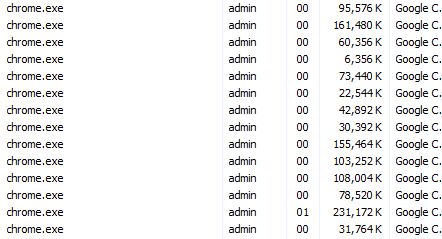


Why does this happen?
Chrome trades memory usage for stability. Each open tab, extension and plug-in is run as a separate process. When a tab or plug-in locks up, users rarely have to restart the entire browser. In most cases, just close the tab and try again. This is especially welcome when one has several tabs open.  The downside to this stability is the possibility of using up all the available RAM on tabs leaving little for running other applications.  Suddenly you are in "click and wait" territory.

Is there anything I can do (without changing my browsing habits)?
OneTab is a FREE browser extension for Chrome that can help you manage the tab monkey on your back.
OneTab allows users to convert open tabs to single tab with a list of links that can be restored individually or all at once.  


After clicking the OneTab icon, my ten tabs were condensed into one tab of links. I am now using under 330 MB.  Below shows my one tab, my 5 extensions and my browser itself.


 I can quickly relaunch any or all of the tabs I was using, and my computer has more RAM available to run other programs I need. OneTab even allows the import, export and sharing of tab links.

If you find yourself with a slow computer when you have many tabs open, give OneTab a try.

Wednesday, October 7, 2015

Google Chrome browser setting - On Startup > Continue where you left off

I knew this feature existed but never realized how useful it could be.

Note: You must sign into the Chrome browser to make the best use of this feature. (more info)

Chrome will remember your tabs when you last closed it and reload them when you next launch.
I frequently collaborate with my colleagues. That usually results in several tabs getting opened in my browser. Then my calendar reminder tells me I am due for another appointment in 15 minutes. I leave the meeting, close my device, and lose my tabs.

With Chrome's "Continue where you left off" setting, my tabs follow me in Chrome across platforms – from Chromebook to office desktop to Apple laptop to home desktop.
I do not have to perpetually and use the same device to keep my tabs. Pretty sweet.

Click on the settings button (at top right of the browser)
Again, this feature only works if you are signed into the Chrome browser.

A downside is Chrome takes a little bit longer to load if I have many tabs open in my browser. My workaround for this delay is simple.  I use the OneTab extension before closing so I have a list of the tabs I had open before I closed.


Give it a try. You can always change it back if you don't like the experience.

Friday, September 18, 2015

EasyBib - A bibliography generator and great chrome extension

First off, let's make perfectly clear that this is not fair. I had to type citations for papers by hand, in the snow, by candle light, uphill both ways and usually on this ancient torture instrument called a "typewriter" (ask your grandparents). My works cited pages frequently looked like a 3D relief map from all the correction fluid build up on the surface. For you youngsters, "correction fluid" was the backspace key and spelling correction of the early 1980s. Imagine painting over your mistakes so you could make more mistakes on top of your previous mistakes. Also imagine that "paint" flaking off if you folded the paper. I can only imagine the challenge my teachers faced trying to make sense of  my papers (content aside). I do know my grades sometimes did not reflect a positive reception to my work.

Youngsters today ("Get out of my yard!") have it easy.
A great extension for Chrome called EasyBib Tools makes creating bibliography entries quick and easy.
If you want the extension to "follow" you in Chrome on other computers/Chromebooks, be sure you are logged into your Chrome browser. Click here to see how. This is not required but highly recommended.

Follow this link to get EasyBib Tools form the Chrome Web Store. Click the top right button to "+ ADD TO CHROME".
An orange book icon for the extension will show up at the top right side of your Chrome browser. When on a webpage you wish to cite, click on the orange EasyBib icon then click "Cite on EasyBib". There is no need to register to get MLA citations.

A window will pop up providing some options to edit the citation. 


Once edits (if any) are complete, click the Create Citation button. A Success! notice will appear with a link to view your bibliography.


Click the link and the citation can be viewed.

But wait, that's not all! 

The export feature allows the citation page to be downloaded as an MS Word document, saved to Google Docs, Dropbox or OneDrive, emailed or copied for pasting.

What did I say? Totally unfair.
Now excuse me, I have to tell the neighbors to turn down their "music".

If you would like more information on Chrome extensions or Google Drive, please contact your Instructional Technology Specialist.

EasyBid Chrome Extension - free to install
MLA format is free. 
APA, Chicago and a plethora of additional formats are available for $19.99 yearly or $39.99 for life.


Monday, June 1, 2015

Multiple Google Accounts in One Chrome Browser?

For years now, we've suggested making life more simple by using one browser on your computer for your personal Gmail and a different browser for a work Google account.  With changes made this year in Austin ISD, we're finally able to use the power behind the Chrome browser and manage multiple accounts.

The Issue:
Forgetting to log out of my personal gmail, I may have problems being able to edit School District-only Google Docs.  This occurs most often when teachers are sharing documents and the receiving party doesn't see the docs in their Shared with me folder.

This is a user's personal Gmail account logged into Google.

Clicking the icon shows that this is an AISD Google account. 

Students can quickly see if they are in the student AISD domain.


One Possible Solution:
Described very well for all devices in this Google Support Link,  the Google Chrome browser does a fantastic job of managing different Google IDs within one browser.  The trick is to log more than one user into Chrome.


Click the User button at the top right of the Chrome browser and then click Switch Person.  You can follow the prompts to add your personal Gmail account as a new user in your Chrome browser.

Each user will have their own set of bookmarks, apps, extensions in this browser and the same set will automatically be available on any other computer where the user logs into their Google Chrome user account.

This power is quickly experienced when a user logs into a Chromebook and sees all Chrome apps, bookmarks and extensions already available to them.

With more than one account installed, you can work in your school Google Drive in one window and continue to have your personal Google Gmail and Hangouts running in a different window at the same time.

You can use the People menu to switch back and forth or right-click the name button at the top right of the browser window.


Mobile Devices?
The same Google Support Link above has directions for different computer platforms and devices, including Android, Chromebook and iOS devices.  Learning to manage multiple Google accounts within the Chrome Browser will be a great time-saver and productivity enhancer.