We often get questions about how to combine documents into a single PDF using Acrobat Professional. Challenge accepted...
Wednesday, December 16, 2015


Sunday, November 22, 2015
Holiday Activities via Google Classroom
Happy Thanksgiving week! The Instructional Technology Team is very thankful for the teachers in AISD that continue to transform their instructional practice and develop authentic ways to engage students using the available technology in the classroom!
Holiday Activities via Google Classroom!
In an effort to demonstrate Google Classroom to teachers and students, The “Holiday Classroom!” class is being shared with all teachers and students in AISD. Simply joining the class will provide teachers and student access to a few Google Apps activities created for the holiday season. Students will automagically get their own copy of the activities after joining the class.
(*Teachers, see important note below.)
Students and teachers can go into the AISD Cloud and search for Google Classroom. Once open, click the + sign at the top right to select Join. Join this class using the code, “5adyiv”. Students can immediately begin working on any activity in this Holiday Classroom! by just clicking on the assignment title and then on the activity.
The process of joining will create a copy of all activities in a new folder in your Google Drive called “Classroom”. Inside that folder you will see all classes that you have joined, including “Holiday Classroom!”
*Important: A quick-start guide to using Google Classroom can be found at: http://bit.ly/
One of the activities included is a Thanksgiving-themed "What I Am Thankful For" Google Slide. Simply adding text to this slide completes the activity, but students can explore other tools within Slides as they become more familiar with this creation tool. Check out the activity at: http://bit.ly/thanksgivingslide .

Leave a comment or feedback on these activities or implementation strategies that you found helpful. We would love to share your feedback with other teachers.
Monday, November 16, 2015
Make a Google Doc Open As a Copy?
When sharing a Google Doc via URL, you can make a change to the URL which will make the student create a copy of the Doc automagically. All it takes is a simple edit at the end of the URL.
For example, I have a 8 Page Booklet foldable template that I want my students to use. I have shared it with the world using the following URL:
https://docs.google.com/presentation/d/1PdA_wyw2FCtOOmYUBog8bzPSC0GGyFxLrz0L-SjNi_k/edit?usp=sharing
If that link is in an email or on a webpage that they have access to, they can simply click the link and be able to view this template. The students will then need to File/Make a copy to use it for an assignment.
Now, I can save my students a couple of steps, which can be valuable in many classrooms, and give them a link that will automagically open up to the Google "Make a copy" dialog box. When the students click "Make a copy", Google will place a copy (that the student now owns) into the students' Google Drive.
 To do this, you need only edit the URL that you are sharing with the students. Copy the URL above and delete everything at the end, starting with "/edit?....". Replace it all with "/copy" and then share that new edited URL.
https://docs.google.com/presentation/d/1PdA_wyw2FCtOOmYUBog8bzPSC0GGyFxLrz0L-SjNi_k/edit?usp=sharing becomes:
https://docs.google.com/presentation/d/1PdA_wyw2FCtOOmYUBog8bzPSC0GGyFxLrz0L-SjNi_k/copy . That's it.
So, if you are not using Google Classroom to distribute templates to students, sharing Docs with this Copy tweak may just be the small time-saver that makes a difference in your day.
For example, I have a 8 Page Booklet foldable template that I want my students to use. I have shared it with the world using the following URL:
https://docs.google.com/presentation/d/1PdA_wyw2FCtOOmYUBog8bzPSC0GGyFxLrz0L-SjNi_k/edit?usp=sharing
If that link is in an email or on a webpage that they have access to, they can simply click the link and be able to view this template. The students will then need to File/Make a copy to use it for an assignment.
Now, I can save my students a couple of steps, which can be valuable in many classrooms, and give them a link that will automagically open up to the Google "Make a copy" dialog box. When the students click "Make a copy", Google will place a copy (that the student now owns) into the students' Google Drive.

https://docs.google.com/presentation/d/1PdA_wyw2FCtOOmYUBog8bzPSC0GGyFxLrz0L-SjNi_k
https://docs.google.com/presentation/d/1PdA_wyw2FCtOOmYUBog8bzPSC0GGyFxLrz0L-SjNi_k/copy . That's it.
So, if you are not using Google Classroom to distribute templates to students, sharing Docs with this Copy tweak may just be the small time-saver that makes a difference in your day.
Tuesday, November 10, 2015
Hiding desktop icons on a Windows PC
Many users store current projects to their desktop for quick access. This can create distraction for audiences when presenting. Windows has a quick way to hide icons to present with a clear desktop.
Right click on an empty space on the desktop
Highlight view
Slide over and down to Show desktop icons
Toggle Show desktop icons off
Repeat the process to show the icons
Right click on an empty space on the desktop
Highlight view
Slide over and down to Show desktop icons
Toggle Show desktop icons off
Repeat the process to show the icons
Friday, October 9, 2015
ViewPure - YouTube without the distraction


The video is then displayed in a clean browser window free of related videos and comments section. Because there is less clutter on the page, the video gets much more screen real estate.
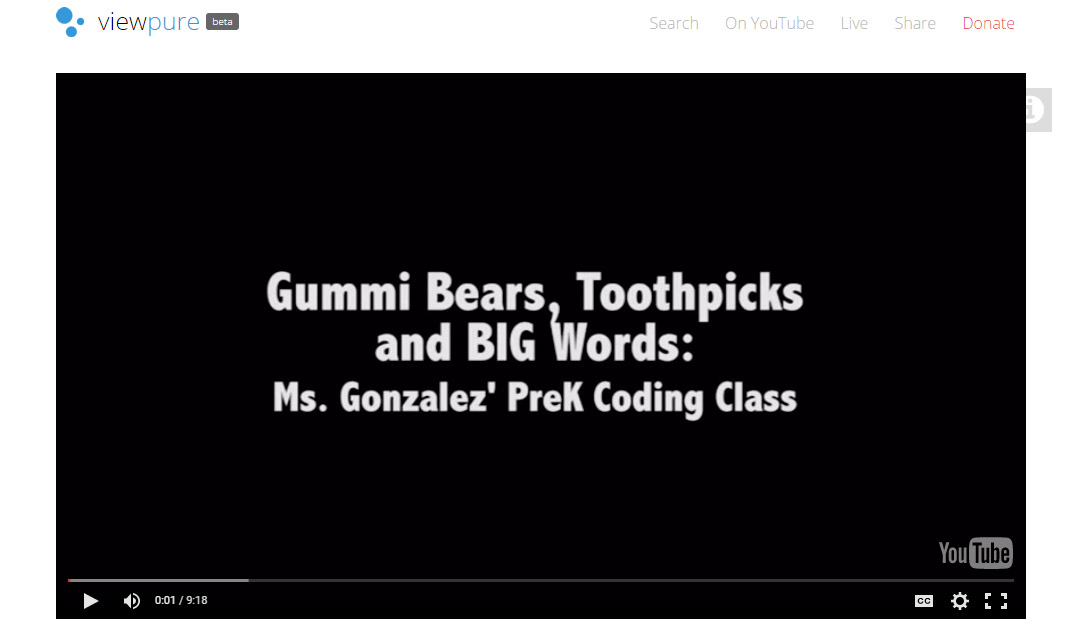
ViewPure also creates a reusable URL and allows for creation of a custom URL with a password. Just click on the gear icon after pasting in your YouTube video address and adjust the settings.

Too many steps? Don't want to have to remember to copy and paste? Want a quick and easy way to use ViewPure from your browser? You are in luck.
ViewPure has a shortcut that can be added to the browser bookmark bar that will automagically open the YouTube video in the browser window in the clean ViewPure format.

If you would like additional information on using web video with your classes, please contact your Instructional Technology Specialist.
Subscribe to:
Posts (Atom)