Sunday, November 22, 2015

Holiday Activities via Google Classroom

Happy Thanksgiving week!  The Instructional Technology Team is very thankful for the teachers in AISD that continue to transform their instructional practice and develop authentic ways to engage students using the available technology in the classroom!

Holiday Activities via Google Classroom!
In an effort to demonstrate Google Classroom to teachers and students, The “Holiday Classroom!” class is being shared with all teachers and students in AISD.  Simply joining the class will provide teachers and student access to a few Google Apps activities created for the holiday season. Students will automagically get their own copy of the activities after joining the class.

(*Teachers, see important note below.)

Students and teachers can go into the AISD Cloud and search for Google Classroom. Once open, click the + sign at the top right to select Join.   Join this class using the code, “5adyiv.  Students can immediately begin working on any activity in this Holiday Classroom! by just clicking on the assignment title and then on the activity. 

The process of joining will create a copy of all activities in a new folder in your Google Drive called “Classroom”. Inside that folder you will see all classes that you have joined, including “Holiday Classroom!”  

*Important: A quick-start guide to using Google Classroom can be found at: http://bit.ly/aisdgclassroom .  Also, it is important that teachers first click the blue “Teacher” button the very first time they access Google Classroom.  They can then +Join a class just like a student.  

One of the activities included is a Thanksgiving-themed "What I Am Thankful For" Google Slide. Simply adding text to this slide completes the activity, but students can explore other tools within Slides as they become more familiar with this creation tool.  Check out the activity at: http://bit.ly/thanksgivingslide .

Leave a comment or feedback on these activities or implementation strategies that you found helpful.  We would love to share your feedback with other teachers. 

Monday, November 16, 2015

Make a Google Doc Open As a Copy?

When sharing a Google Doc via URL, you can make a change to the URL which will make the student create a copy of the Doc automagically.  All it takes is a simple edit at the end of the URL.

For example, I have a 8 Page Booklet foldable template that I want my students to use.  I have shared it with the world using the following URL:
https://docs.google.com/presentation/d/1PdA_wyw2FCtOOmYUBog8bzPSC0GGyFxLrz0L-SjNi_k/edit?usp=sharing

If that link is in an email or on a webpage that they have access to, they can simply click the link and be able to view this template. The students will then need to File/Make a copy to use it for an assignment.

Now, I can save my students a couple of steps, which can be valuable in many classrooms, and give them a link that will automagically open up to the Google "Make a copy" dialog box.  When the students click "Make a copy", Google will place a copy (that the student now owns) into the students' Google Drive.
To do this, you need only edit the URL that you are sharing with the students.  Copy the URL above and delete everything at the end, starting with "/edit?....".   Replace it all with "/copy" and then share that new edited URL.

https://docs.google.com/presentation/d/1PdA_wyw2FCtOOmYUBog8bzPSC0GGyFxLrz0L-SjNi_k/edit?usp=sharing  becomes:
https://docs.google.com/presentation/d/1PdA_wyw2FCtOOmYUBog8bzPSC0GGyFxLrz0L-SjNi_k/copy  .  That's it.

So, if you are not using Google Classroom to distribute templates to students, sharing Docs with this Copy tweak may just be the small time-saver that makes a difference in your day.

Tuesday, November 10, 2015

Hiding desktop icons on a Windows PC

Many users store current projects to their desktop for quick access. This can create distraction for audiences when presenting. Windows has a quick way to hide icons to present with a clear desktop.

Right click on an empty space on the desktop
Highlight view
Slide over and down to Show desktop icons
Toggle Show desktop icons off
Repeat the process to show the icons


Friday, October 9, 2015

ViewPure - YouTube without the distraction

YouTube is a great resource for educational content. It is also a source for, shall we say, off-topic content. Often the great educational content shares the screen with a "related" video that grabs our students' attention like a flashing sign advertising free ice cream. Sometimes there are also comments posted by people demonstrating their command of the English dialect my grandmother called "sailor talk".


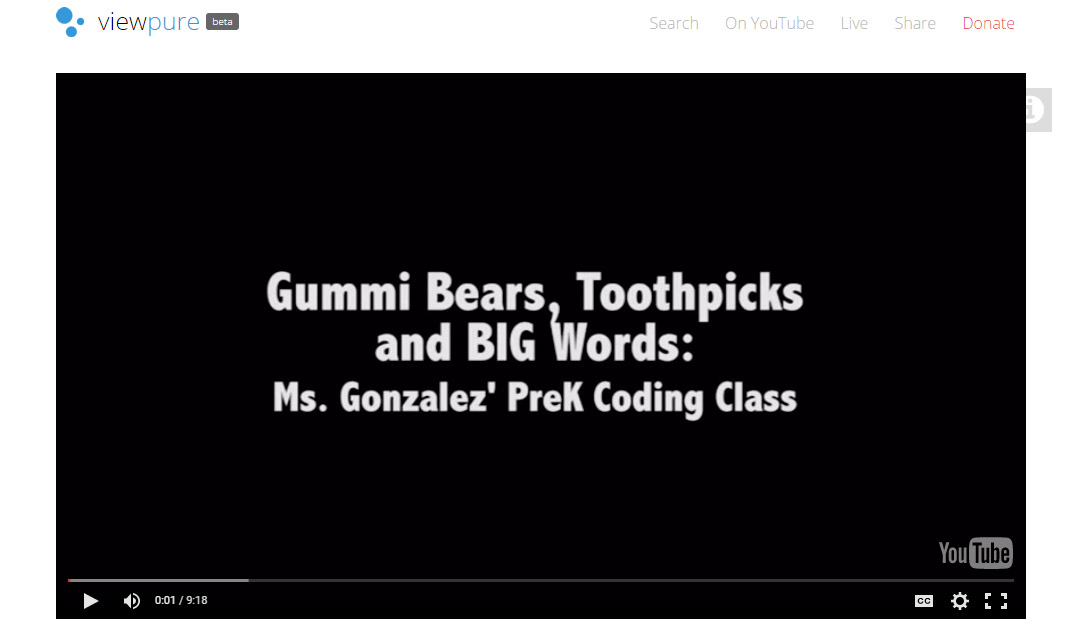
 ViewPure is a free web service that allows you to watch and project YouTube videos without seeing potentially distracting "related" videos or comments sections. Simply paste the address of the Youtube video you wish to isolate and click the Purify button.

The video is then displayed in a clean browser window free of related videos and comments section. Because there is less clutter on the page, the video gets much more screen real estate.

ViewPure also creates a reusable URL and allows for creation of a custom URL with a password. Just click on the gear icon after pasting in your YouTube video address and adjust the settings.


Too many steps? Don't want to have to remember to copy and paste? Want a quick and easy way to use ViewPure from your browser? You are in luck. 

ViewPure has a shortcut that can be added to the browser bookmark bar that will automagically open the YouTube video in the browser window in the clean ViewPure format.

If you would like additional information on using web video with your classes, please contact your Instructional Technology Specialist.


Thursday, October 8, 2015

Safely Using Images From The Internet

Probably one of the biggest problems with students using the internet for school work is the inappropriate or illegal use of images found online.  Teachers like to think that Educational Fair Use means that anything can be used with students.  Not so.

(Click to enlarge)
A teacher in my PLN (Professional Learning Network) shared the picture below.  A teacher in her district found a picture in a Google search and copied it from the search results page and used it in a presentation. That presentation file was uploaded for a few days on her website for students to use and then taken down.   The company, a part of Getty Images apparently, has tools actively searching the internet for their work and they found their image.  The teacher was sent a bill for $1480 for the use of the image online.  Legally, it had to be paid.

Researching into this more, there are a good number of educational institutions sharing that they have been hit with similar bills.  The teachers that posted the images online are responsible for paying the bill, often in the thousands of dollars.

Looking for an authentic object lesson for students or teachers about copyright and the use of images found on the internet?  This is pretty authentic.

Where Do I Get Online Images For The Classroom?

Not everything on the internet is evil or copyrighted.  Students have access to a wealth of images that can be used for reports.  Do keep in mind that the practice of citing your image source for each image can help the writer be mindful of copyright permissions for images used.

Google Image Search
There is a lot in The Google that is legally useable. Go ahead and use the Google image search, but change the settings to only search for images that have been labeled for reuse or reuse with modification.

Again, these photos belong to somebody. They are just letting you use them for free if you give them credit with a citation.

Flickr Creative Commons
Flickr.com maintains a Creative Commons (https://www.flickr.com/creativecommons/ ) that houses millions of photos that are free to use.  This page quickly describes the Creative Commons licenses and groups the photos by license.  Not all of the photos are elementary safe, but teachers can collect some great images and provide them as a photo bank for classroom projects. Look for the Attribution icon for freely-usable images.

Google Docs Research Tool
One of our favorite tools in Google Docs, the Research tool is found in the Tools menu in Docs and Slides. (Google support).  Using this tool, students can search for images, websites, statistics and more right beside the Google Doc they are working on.

Finding an image is as easy as typing your search term at the top and clicking the 'G' to give you access to the Images search.  You can now find a good image in the results and simply drag over to your document.  I love showing this to teachers in a large room, just because you quickly hear gasps of joy as they realize that the Research tool automatically creates a footnote for that image and places the citation at the bottom of the page.  No rolling the typewriter up from the bottom of the page anymore.

Images, websites, quotes and more can provide a clickable citation for your document.


More Online Resources For Free Images For The Classroom
Our friends at Harvard Law School Library have published a guide for appropriate use of online images. Finding Public Domain and Creative Commons Media. They share a few more resources and legal definitions for public domain images.

What are some sources that you use with your students?